
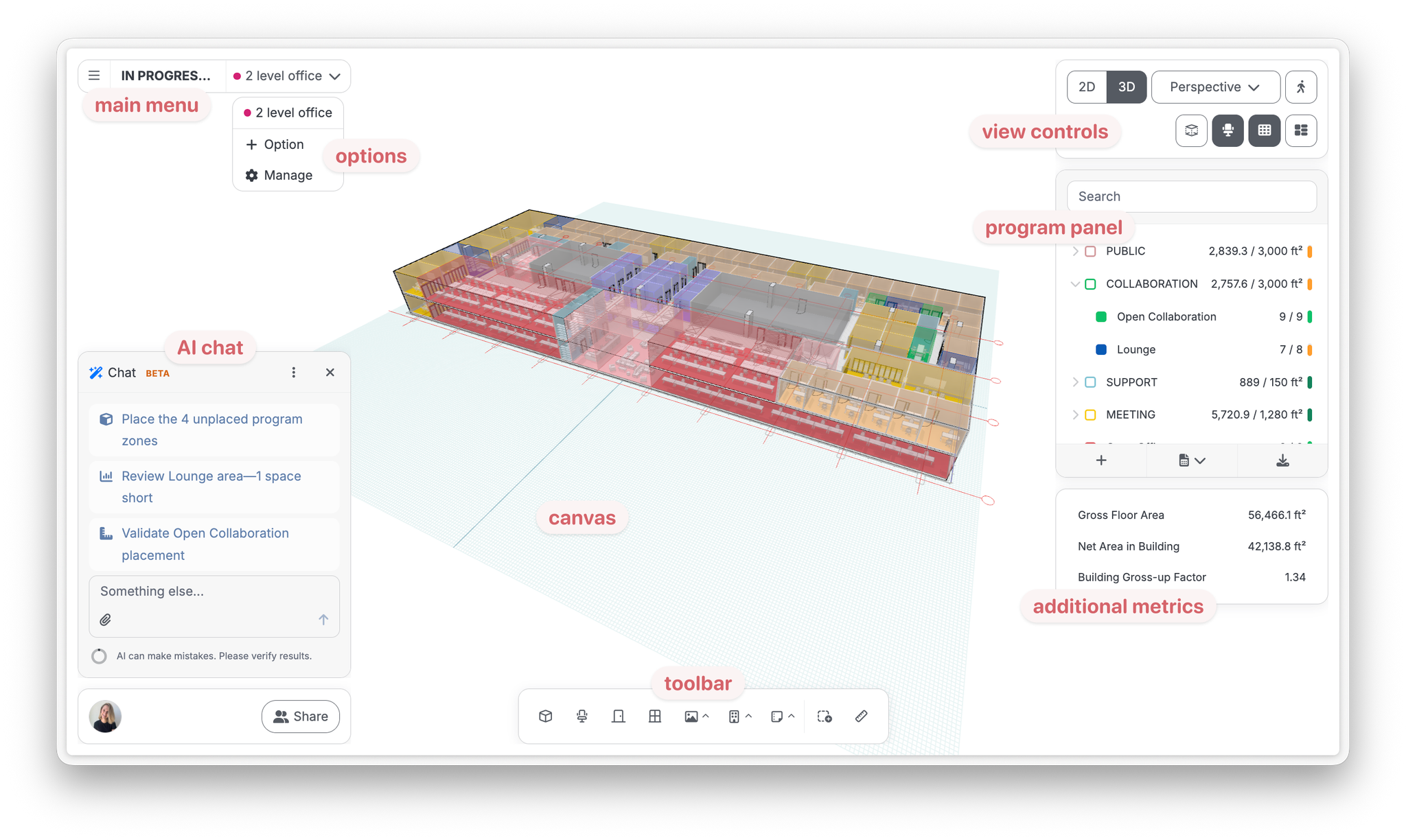
The toolbar
The toolbar at the bottom of the canvas, left to right:
Button | Contents |
Space | Space placement + space library |
Furniture and Equipment | Components from loaded libraries, including default furniture and generic components |
Door | Doors |
Window | Windows |
Context | Underlays, Gridlines, Planning Grids and Sites |
Building | Building, Shaft, Stair, Elevator, Column, Circulation |
Annotations | Text, Dimension, Line, Arrow |
Select multiple | Window selection |
Measure | Measure tool |
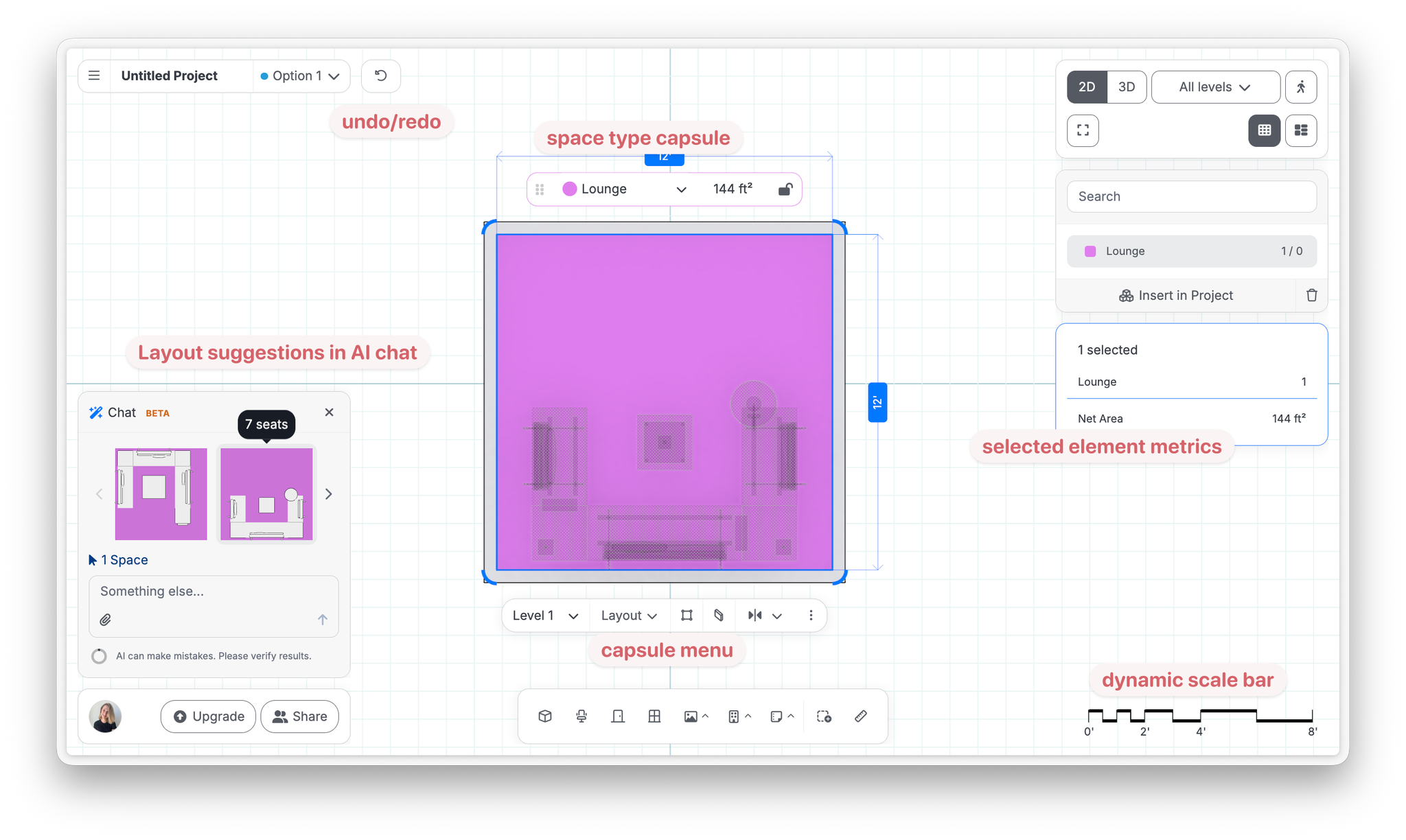
The capsule menu
Select any element and a small pill-shaped toolbar appears next to it called the capsule menu. It holds that element's main actions: name and type, dimensions, Edit Shape, Walls, Add Clearance, level, mirror, pin, and additional action in the three-dot menu. Each element will have slightly different actions in its capsule menu.
The program & metrics panel
The panel on the right side of the canvas shows both your program requirements and live metrics.
- Your requirements list: add (+), import, search, and drag requirements onto the canvas.
- Live areas, gross-up factors, breakdowns, and counts for the project, level, or current selection.
- Edit Space Program opens the full table of your requirements, where you can edit every column at once.
The main menu
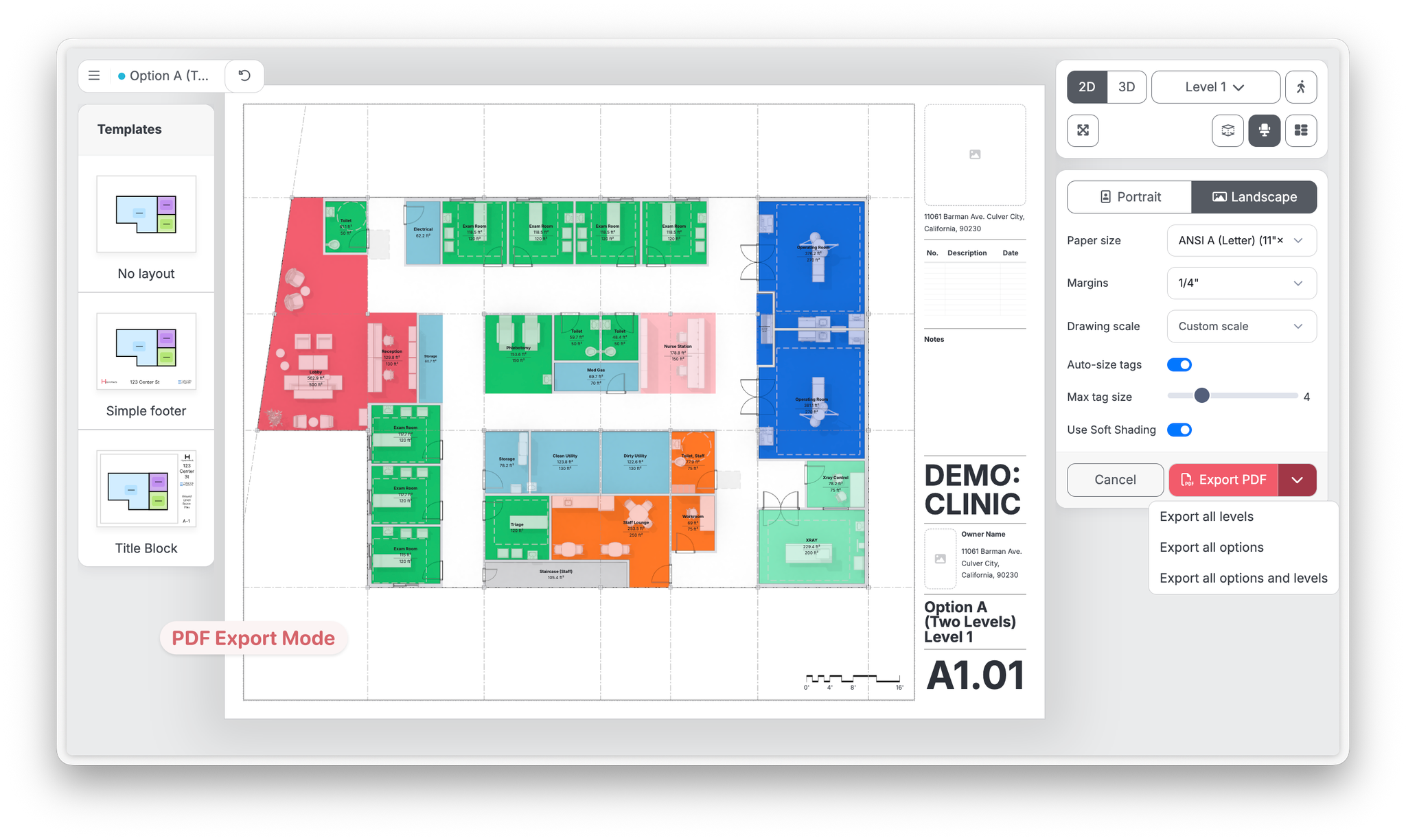
The menu button in the top-left corner holds project-level commands: New / Open / Duplicate / Delete project, Switch to Metric (or Imperial) units, Import and Export submenus, Documentation (which opens this documentation site), and Send feedback to Hypar.
Views controls
View controls sit in the top-right corner:
- 2D / 3D toggle, with Perspective/Orthographic projection if in 3D and Levels if in 2D
- Walkthrough: walk through your model
- Exploded view: separates levels in a static axon view
- Zoom to fit project or selection
- Toggle default grid visibility
- Diagram mode: an abstract, “bubble diagram” type mode. Labels drop their areas here — spaces and circulation alike — leaving just the names
Tip: In 3D, Hypar will hide walls facing you to make it easier to see inside a space, but rest assured that they are still there.
Selection
- Click to select; Shift+drag to window-select multiple elements.
- Escape deselects all; Delete/Backspace deletes.
Keyboard shortcuts
Action | Shortcut |
Undo / Redo | Ctrl/Cmd+Z / Shift+Ctrl/Cmd+Z |
Copy / Cut / Paste | Ctrl/Cmd+C / X / V |
Delete selected | Delete or Backspace |
Nudge selection | Arrow keys |
Rotate selection | Space |
Finish drawing | Enter |
Cancel / deselect | Escape |
Window select | Shift+drag |
Ortho (when drawing or placing) | Shift (hold) |
Units
Toggle the whole project between imperial and metric from the main menu: Switch to Metric/Imperial units.
Last verified against Hypar v0.2.047 — October 19, 2026.