
Place furniture and equipment
Click Furniture and Equipment (the chair icon) in the toolbar. Content is grouped into Healthcare and Workplace categories, plus your own custom content if you've added any (e.g., sent from Revit). Search for specific items, then drag and drop them into a space.
- Select, move, mirror, or rotate any piece. Zoom in to see the rotation handles.
- Placing: switch to a 2D view, go to the level you want, then drag furniture into a space there. You can also place in 3D and drag your furniture up or down.
Components report content counts (desks, seats, beds) to the metrics panel, so furnishing a plan updates your capacity numbers live.
Layouts
You can easily copy a furniture and equipment layout from one space to another.
- Copy layout from... / Copy layout to... transfers a furniture layout between spaces of the same type. You can find this button in space’s capsule menu.
- Clear layout empties a space.
- Rooms adapt intelligently when you resize them: items on a wall stay on the wall, furniture in the middle of a space stays centered, and associated furniture stays grouped. If Hypar doesn't get it quite right, select the furniture as a group and Hypar will remember and move it together.
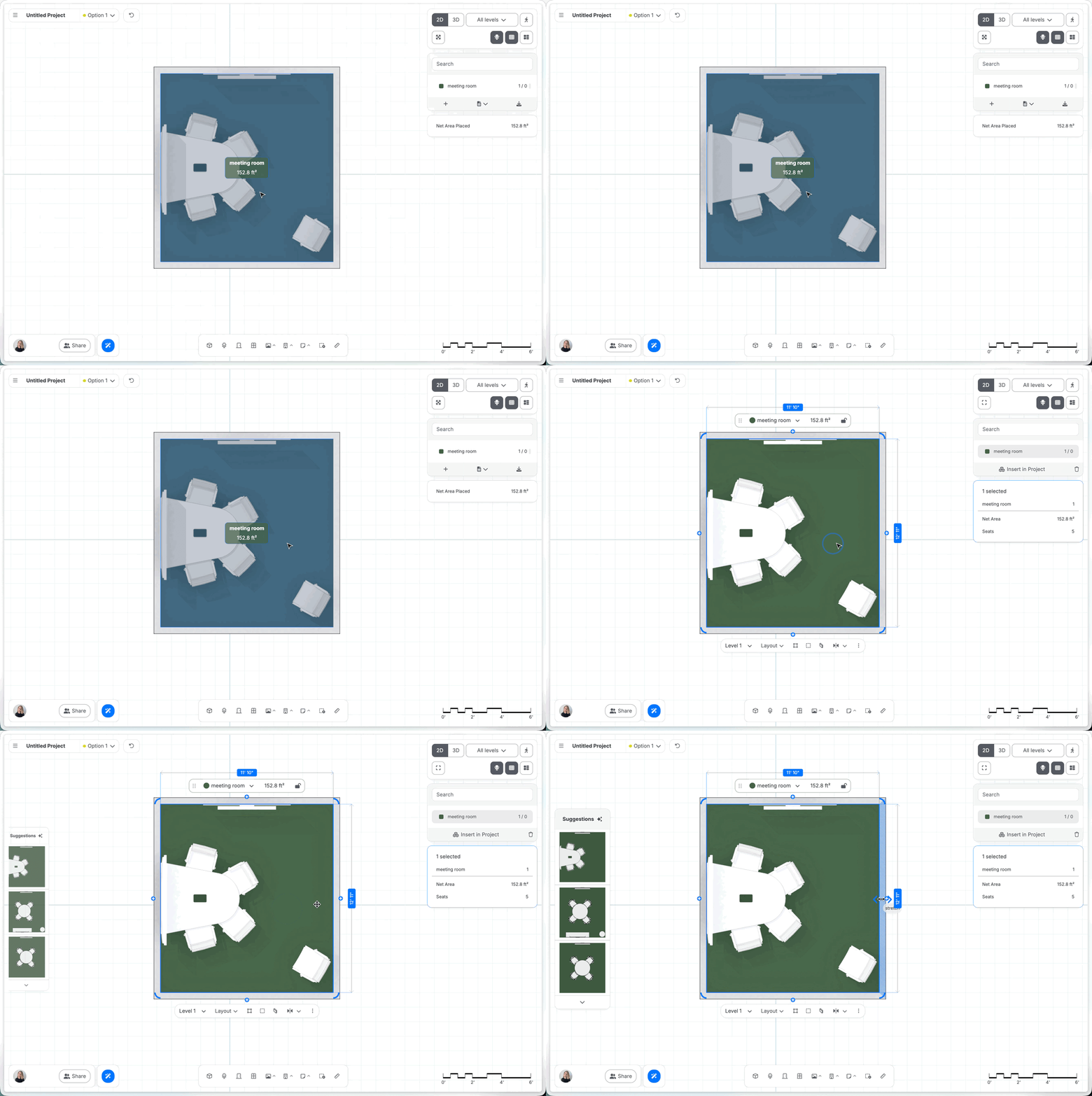
- AI Layout suggestions propose furnished arrangements per space: step through alternatives, choose Expand space or Fit to space, then accept or dismiss.
CAD components and flexible components
No 3D family? Use flexible boxes and cylinders, or import 2D CAD blocks, to make sure everything fits.
- Flexible boxes and cylinders: in the Furniture and Equipment library, click Generic → flexible box or cylinder.
- Stretch or use the dynamic dimension strings to resize; use the arrow in the center to move components up or down.
- Cylinders stay cylindrical however you stretch them.
- Stack components on each other or on furniture, watching for the pink snap indicator.
- Name components in the capsule menu ("CNC machine," "dust collector") and they become reusable under Generic in the furniture library.
- Note: resizing one instance doesn't resize others with the same name, so use unique names when you need different dimensions.
- CAD components: click Import → CAD Furniture in the Furniture library (or Main menu → Import) and choose a DWG/DXF (a manufacturer's CAD block, say). Confirm units if prompted; Hypar preserves the block's line color and name. Save it to a library via the three-dot menu.
- In Revit: flexible boxes/cylinders arrive under Generic Models (as Box/Cylinder, or their custom names); CAD components arrive under their original file name.
Libraries ( 💎 paid feature)
Libraries share your best spaces and furniture across projects and teams.
- Save to a library: select elements (multiple at once is fine) and use the three dots in the capsule menu → Library → add to your personal library, your group's library, or a named library. A saved space includes its walls, furniture, doors, and clearances, and can be anything from a wall-less module to a fully furnished room to a nested multi-room suite.
- Create named libraries: open the library dialog under the Space button, click + → New library, name it, and choose Personal or Group. Use the same + menu to show/hide a library in a project, rename, or delete it. Furniture libraries work the same way.
- Group libraries: everyone in your group can add or delete items (see your group via your avatar → My group). Hover a thumbnail to see who added it and when. Move personal items to the group library to share them.
- Libraries feed suggestions: Hypar's layout suggestions draw from your library content, marked with a library icon and who added it, even in brand-new projects.
- Manage libraries: create, rename, and delete libraries; Load into project / Unload from project controls what's available in the picker. Space libraries and furniture libraries are managed separately.
- Library types: Personal (just you) and Group (shared with everyone in your group; changes affect all members).
- Move items from your private library to the group library with Move to Group.
Rename before you save: a library space's name is created automatically when added and can't be changed later. (You can always reassign a placed space afterward.) Library spaces named to match a project requirement are counted toward it automatically.
Revit content
Import furniture, equipment, and rooms from a Revit model to reuse your firm's content directly.
Last verified against Hypar v0.2.019 (July 10, 2026).